#Import and export
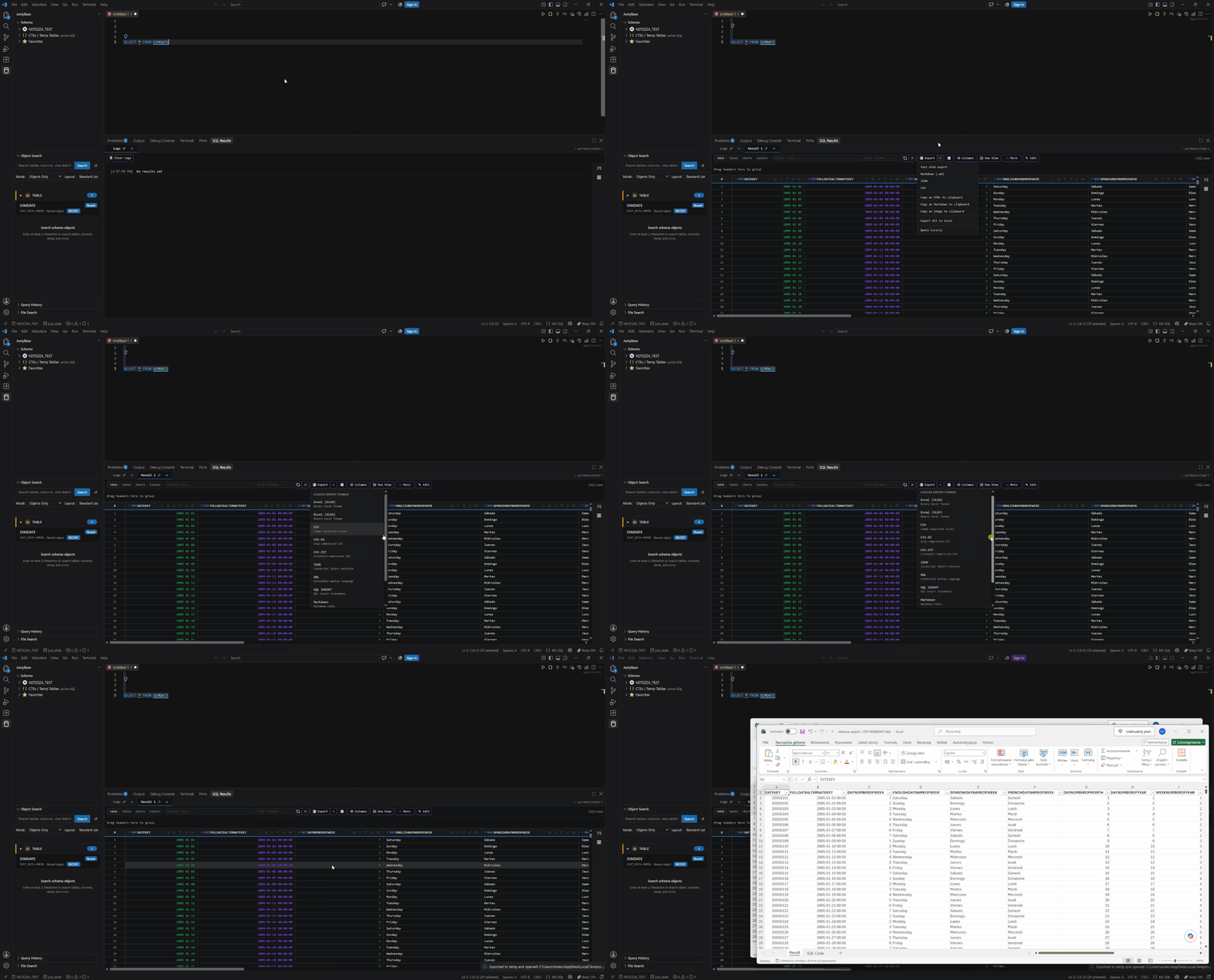
Always decide which data boundary you mean before choosing a command: the visible grid, the complete fetched/spilled dataset, or a fresh execution of the SQL. “Export all data” is intentionally not a sufficient description.
#Export sources
| Source | What is exported |
|---|---|
| Active result grid | The selected result-set view; raw or formatted values can be chosen. |
| Disk-backed result | The complete fetched dataset in the local SQLite spill, subject to filters/sorts selected by the export. |
| Editor / Command Palette | A new execution of the selected SQL, including CodeLens export actions. |
| Batch result | Multiple result sets; spreadsheet formats use separate sheets where supported. |
| Schema Search | Search rows as an XLSB workbook from the Schema Search view. |
#Export formats
| Format | Support | Notes |
|---|---|---|
| XLSB | Supported | Compact binary Excel; preferred for large workbooks and multi-result sheets. |
| XLSX | Supported | Modern Excel workbook; multiple result sets become sheets. |
| CSV | Supported | Plain text; use raw values when downstream parsing matters. |
| CSV.GZ | Supported | Gzip-compressed CSV stream. |
| CSV.ZST | Supported | Zstandard-compressed CSV stream. |
| JSON | Supported | Result rows as a JSON array. |
| XML | Supported | XML result document. |
| SQL INSERT | Supported | Generated INSERT statements; review quoting and target schema. |
| Markdown | Supported | Table for sharing or documentation; combined Markdown export can include batch sections. |
| Parquet | Supported | Columnar export from the desktop result/file preview workflows. |
| XPT | Partial | SAS-like macro/file workflow. Verify the target command and dialect first. |
#File preview and Data Workspace
The desktop Data File Preview opens XLSB, XLSX, CSV/TSV, Parquet, Avro, and Access files as local data. Excel workbooks expose sheets as tabs. Sorting, filtering, grouping, profiles, Row View, Value Viewer, copying, and export use the same exploration patterns as query results. justybase.filePreview.maxRows defaults to 20,000 for a file preview.
Data Workspace uses a local DuckDB/SQLite-backed profile to query files as tables. Files can be joined and transformed locally without a warehouse connection. Editable sources are XLSX and CSV/TSV plus Access; Parquet, Avro, and XLSB are read-only source formats in the workspace editor. The Data Workspace guide has the exact source boundary.
#Import from a file
- Select a target table in Schema Browser and choose Import Data from the main bar or Import Data (Advanced Wizard) where the desktop wizard is available.
- Choose CSV/TXT/TSV, XLSX, or XLSB, or use Smart Paste for a path or tabular clipboard data. Every database importer accepts
.tsvsources. - Confirm delimiter, decimal separator, header handling, encoding, and inferred types.
- Map source columns to target columns; choose defaults, nullable behavior, and conversions explicitly.
- Review the generated DDL and import plan. A preview is not an execution.
- Run synchronous sample validation, then allow background validation for the larger sample when enabled.
- Confirm the write and monitor progress. Cancellation stops the transfer for every database importer. A failed batch import rolls back its transaction where supported and drops a newly created target table instead of leaving a partial load.
The simple importer is useful for a known, clean file. The advanced wizard is safer for mixed types, renamed columns, nullability, date formats, and large files because it separates inference, mapping, validation, and execution.
For ClickHouse, the companion uses the HTTP runtime and generates a MergeTree target with ORDER BY tuple() by default. Inferred numeric, date/time, boolean, UUID, decimal, and text columns are mapped to ClickHouse types; use the generated preview to change the target mapping or provide a qualified database.table target. Inserts are sent in batches and are intentionally not wrapped in a relational transaction because ClickHouse mutations and MergeTree ingestion have different consistency semantics.
For Netezza, CSV/TSV/TXT, XLSX, and XLSB imports use the driver's virtual external-table stream. The source rows are registered under a transient name and consumed with FROM EXTERNAL; they are not first copied to a local data file. This keeps the client-side stream and the driver's external-load protocol ordered and avoids failures caused by a prematurely closed or partially materialized temporary file. The Netezza driver must be version 2.4.4 or newer.
Excel header handling is defensive: a row containing numeric values is treated as data rather than a header, missing headers receive COL_1, COL_2, and repeated names receive suffixes such as COL_1. Consequently, a workbook with a first row 1, a retains that row in the target table.
CSV/TXT/TSV files use a conservative header heuristic: when the first record has no data-like cells and the second record does, the first record becomes the header; ambiguous all-text files keep the historical header-first behavior. Empty header cells become COLUMN_<n> placeholders across dialects.
Parquet is supported by the DuckDB/File SQL connection, not by the direct Netezza file importer. To load Parquet into Netezza, open the file as a File SQL source and use Migration Studio; the live migration path reads the Parquet view and streams rows into Netezza.
#Import from the clipboard
Import Clipboard Data to Table reads tabular clipboard content. Smart Paste detects file paths and tabular text, then opens the matching path or import flow. Clipboard parsing is bounded by the host and OS clipboard limits; for large data, save a file so the wizard can validate and retry deterministically.
Netezza clipboard imports use the same transient virtual external-table stream as file imports. Duplicate or empty column names are normalized before the target DDL is generated, and the stream is unregistered and destroyed after success or failure.
Quoted CSV/TSV cells are parsed as logical records, so delimiters, doubled quotes, and LF characters inside a cell are preserved through import. CR characters in cell values are removed when the Netezza stream is encoded. Line breaks inside column headers are normalized to safe identifier characters.
#Reliability controls
- Preview and DDL generation happen before a write confirmation.
- Progress and cancellation are shown for long imports/exports.
- Background validation is controlled by
justybase.importWizard.backgroundValidationEnabledandjustybase.importWizard.backgroundValidationSampleSize; disabling the setting skips both automatic and requested background validation. - Batch imports use the per-dialect transaction and drop-on-failure behavior; Netezza and PostgreSQL loads are single statements. A failed import never claims a partially written table is complete.
- Access and local file operations use the embedded reader/runtime and have no warehouse transaction boundary.
#Access and database boundaries
Netezza, Db2, Oracle, PostgreSQL, MSSQL, MySQL, DuckDB/File SQL, SQLite, and Access do not share identical type mapping or staging behavior. Use Database support for the current matrix and inspect generated SQL before execution.
#Troubleshooting
- If a delimiter is wrong, reopen the preview and set it explicitly instead of correcting rows after import.
- If numbers become text, check decimal separator, thousands grouping, and target type mapping.
- If an Excel sheet is missing, confirm the selected sheet and whether the workbook is XLSB or XLSX.
- If an export looks truncated, identify whether you exported loaded rows, the disk-backed fetched dataset, or a fresh query execution.
- If a large export is slow, prefer streaming CSV.GZ/CSV.ZST or XLSB and inspect Result Panel performance stats.
For a repeatable desktop measurement of preview, streaming import, export payload preparation, compression, and workbook finalization, see the Data Grid performance benchmark playbook. Its reported export time ends at the webview-to-host message, so it is not a promise about file-writing time.