#Query History and Favorites
#Query History
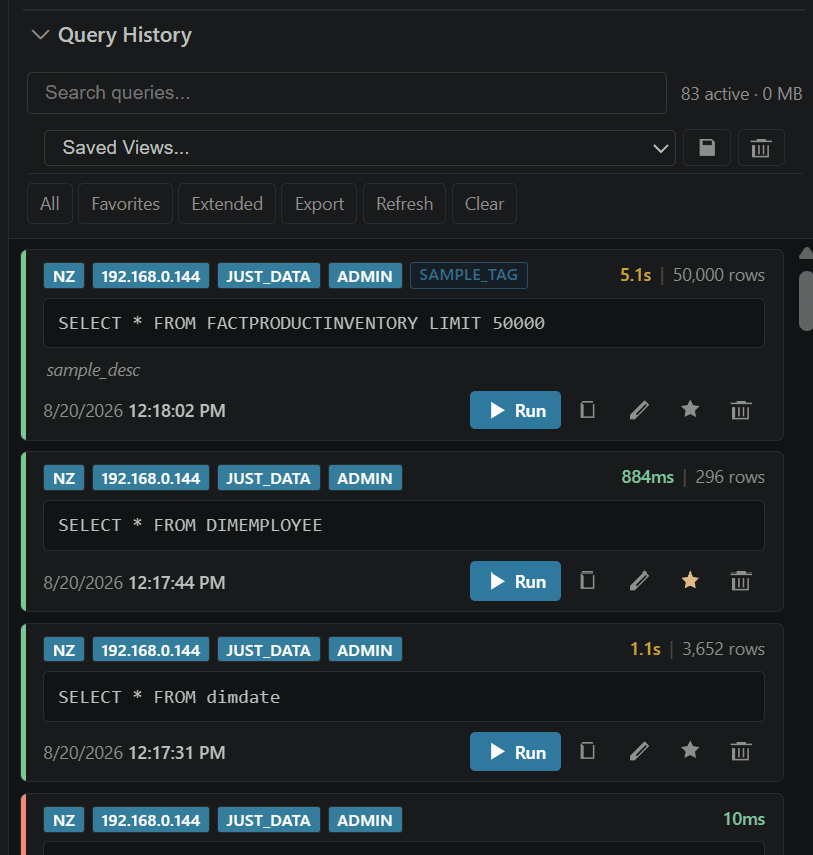
Open Query History in the JustyBase explorer. Each entry records the SQL, connection/database context, status, duration, and row/affected-row information available from the execution. Select an entry to open it in a new SQL tab or re-run it.
Before rerunning a statement:
- Check the connection and database shown by the entry.
- Review variables/parameters and replace environment-specific values.
- Add a predicate or
LIMITif the original was exploratory. - For writes, use preview/safe execution and confirm the target.
History is a convenience record, not a secret store. Do not put passwords or tokens in SQL literals. Its retention and location follow the VS Code extension's local storage behavior.
#Favorites
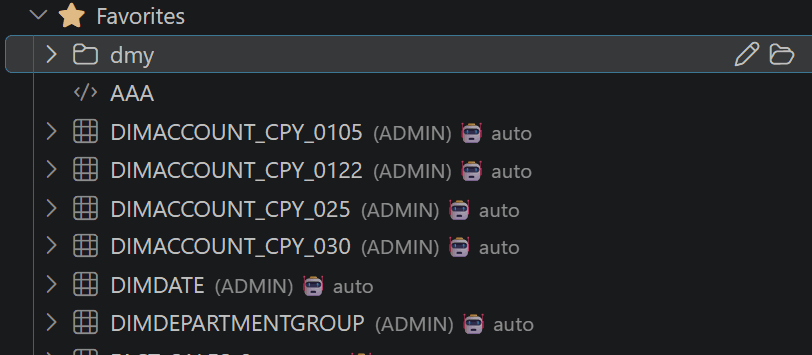
The Schema Browser can favorite tables, views, procedures, functions, and external tables. SQL snippets and folders can also be curated with notes. A favorite can carry:
- a qualified object reference;
- a folder and display note;
- a SQL snippet or description;
- a Copilot auto-include/enabled flag;
- an explicit include now action for one request.
The desktop workspace file is .vscode/netezza-favorites.json. It contains curated context, not connection passwords. Review it before committing: teams may intentionally commit sanitized favorites, but environment-specific names and notes can still be sensitive.
#Copilot context
Automatic inclusion is bounded by justybase.copilot.maxWorkspaceProfilesInContext. Disable a favorite’s Copilot flag when its columns, comments, or sample notes should not leave the local workspace. The AI guide explains confirmation and data boundaries.
#Export and migration
History entries can be exported or copied for review. Favorites are workspace metadata and are not a database migration. Use Migration Studio for data movement and Schema Compare for object differences.