#AI SQL Assistant
JustyBase adds SQL context to GitHub Copilot workflows while keeping database-side effects behind explicit tool confirmations. The intended loop is:
diagnostic → schema/DDL context → Copilot explanation → suggested fix → diff review → user execution#Available workflows
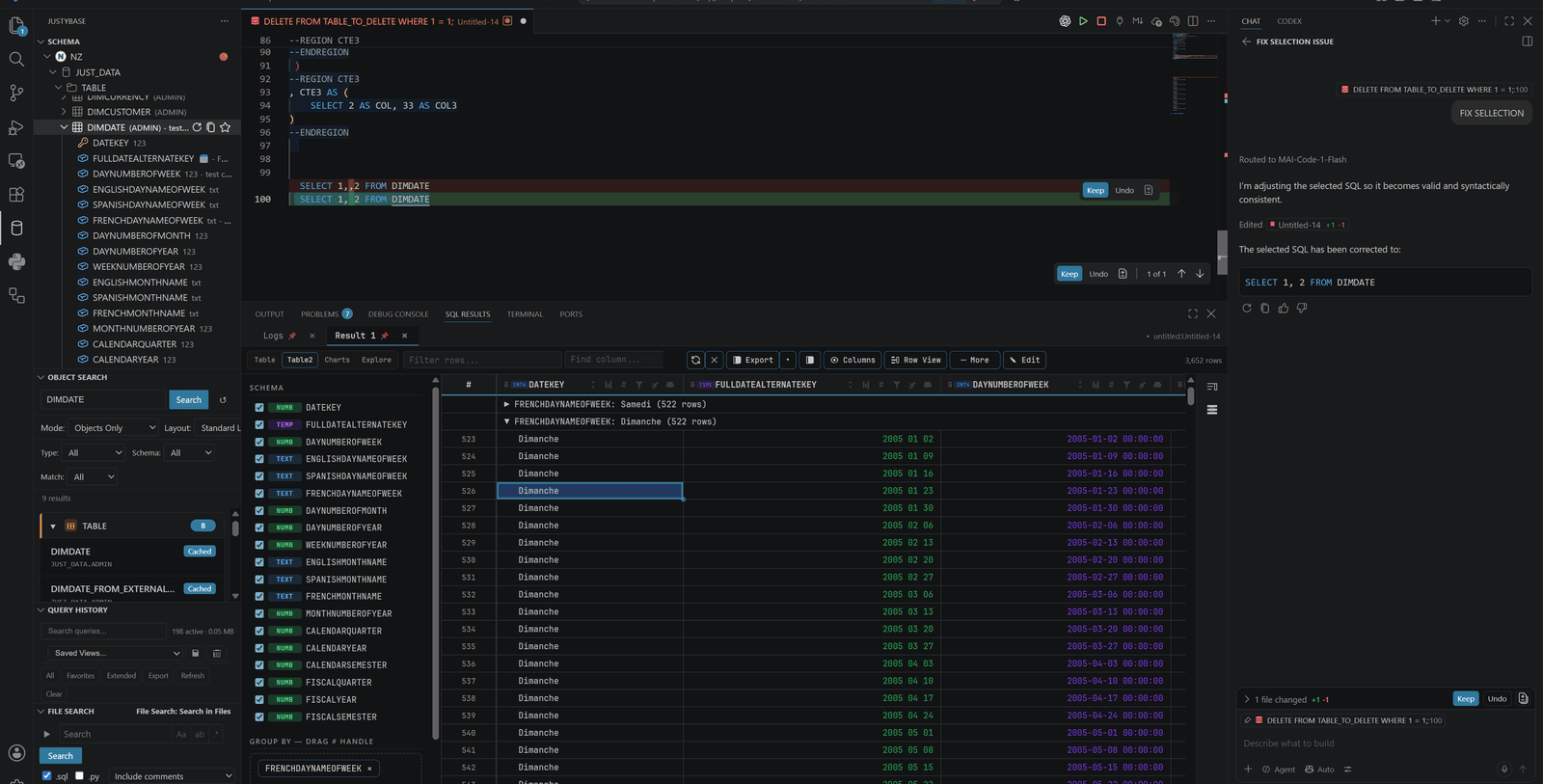
- Fix SQL — explain diagnostics and propose a corrected query.
- Optimize SQL — discuss joins, predicates, distribution, and database-specific trade-offs.
- Explain SQL — summarize a statement using its actual aliases, CTEs, tables, and diagnostics.
- Best Practices — rewrite toward the selected dialect’s documented practices.
- Custom Question — ask about the selected SQL and its context.
- Generate SQL — describe a query goal and review the generated SQL before saving or running it.
- Repair Netezza procedure — compile one complete
CREATE PROCEDUREorCREATE OR REPLACE PROCEDUREblock, return database diagnostics, and let Copilot prepare bounded corrections.
These actions produce text, chat interaction, or a guarded rewrite proposal. Procedure repair can update the active editor after a successful compilation, but never saves the file automatically.
#Context that may be gathered
Depending on the action and confirmation, the context builder may include:
- selected SQL and parser/linter diagnostics;
- database kind, connection/database/schema scope, and referenced object names;
- table profiles, DDL, column types, comments, and dependencies;
- current query history summary and workspace notes/favorites;
- locally analyzed procedure context;
- the selected result or import profile when the workflow requests it.
justybase.ddl.maxTablesForContext and justybase.copilot.maxWorkspaceProfilesInContext bound context size. Empty or unavailable metadata is reported as unavailable; it is not fabricated.
#Privacy and confirmation
When an action would send SQL or metadata to the Copilot service, JustyBase shows a confirmation describing the operation and context. justybase.copilot.skipPrivacyConfirmation can skip that prompt only when the user and organization have made that policy decision. justybase.copilot.enabled is the broad off switch; when false, AI features are unavailable and the extension does not send their context.
Do not select secrets, passwords, tokens, regulated row data, or an unreviewed production dump as AI context. Prefer a read-only connection and a sanitized query. Copilot’s own retention, account, model, and organization policies still apply; JustyBase cannot override them.
#Tools: current contract
Language Model Tools are registered from the current tool contracts in src/contracts/copilotTools/contracts.ts and activation registry. They provide schema/table/column discovery, DDL, dependencies, comments, favorites, diagnostics, import inspection/mapping, tuning advice, and database validation. They are not arbitrary SQL execution tools.
validateSqlOnDatabase is a guarded database-side validation/EXPLAIN path. It is not a general-purpose “run whatever SQL Copilot writes” operation. The user still reviews the SQL and decides whether to execute a statement through the normal query workflow.
netezza_repair_procedure is the explicitly write-capable exception for Netezza
procedures. It accepts compile_only and compile_and_call modes and stops
after three attempts. In compile_and_call mode, typed arguments are converted
to a single CALL statement and a separate modal confirmation is required
after compilation. Each retry may repeat procedure side effects, so use a
controlled test connection/database.
The exact names and current count are generated in the Copilot and MCP reference, so examples do not drift from the registered code.
#MCP: read-only by design
The bundled Netezza MCP server exposes catalog introspection, DDL, safe EXPLAIN, plan analysis, and parser validation. Its tools are catalog-built and read-only: no arbitrary SQL, DML, DDL, table scans, or password files. Stdio mode serves Copilot Chat; optional HTTP mode binds to 127.0.0.1 only while VS Code is open. The selected MCP connection is explicit and independent of the active editor tab.
Enable MCP under JustyBase Settings → MCP Server, choose the saved Netezza connection, and enable only the transport needed. Read the MCP technical appendix for client examples and the complete generated tool catalog.
#Review before applying a fix
- Read the diagnostic and inspect the affected source range.
- Ask Copilot for a fix with schema/DDL context.
- Compare the proposed diff, including identifiers, predicates, joins, and transaction behavior.
- Re-run parser/linter diagnostics.
- Use
EXPLAINorvalidateSqlOnDatabasefor a read-only plan check where appropriate. - For a Netezza procedure, choose
compile_onlyunless a controlled testCALLis intended; review the separateCALLconfirmation and typed arguments. - Save the corrected procedure only after reviewing the editor diff.
#Troubleshooting
- No AI action: check
justybase.copilot.enabled, Copilot availability, and the request timeout. - Missing schema context: refresh metadata and confirm the selected connection/database.
- Tool not available: use the generated names in the reference page and verify that the required database connection and Copilot surface are enabled.
- Privacy prompt rejected: the action stops without sending the context.
- MCP sees the wrong database: select the MCP connection explicitly; it never follows a tab change.